Security analysis
Zume Editor has tools for binary triage, data transforms and signature
scanning — useful for reverse engineering, CTFs and authorized security work.
Each is also available headlessly to AI agents through the
MCP server (the entropy, transform, yara_scan,
pe_info, elf_info and macho_info tools).
Executable Info (PE / ELF / Mach-O)
Code → Executable Info… reads an executable structurally and lists the result in the results panel. The format is detected from the file's magic:
- PE (Windows EXE / DLL): the headers and security flags (ASLR / DEP / CFG), every section with its entropy, the imported DLLs and functions, the exports, and the resources a feature inventory needs — the version strings, the string tables, each dialog's caption and controls, the menu items and the manifest — plus the PDB path and any data appended past the last section.
- ELF (Linux executables and shared objects): type, machine, entry, the interpreter, segments and sections with entropy, the dynamic section (needed libraries, soname, rpath / runpath), imported and exported symbols with their versions, the local symbols when not stripped, the GNU build id, and the hardening the binary carries (PIE, NX stack, RELRO, stack canary, FORTIFY).
- Mach-O (macOS / iOS images, including fat / universal binaries, whose slices are listed and the first one read): CPU, file type, header flags, every load command, segments and sections with entropy, linked dylibs with versions, rpaths, UUID, platform / minimum OS / SDK, the entry point, imported and exported symbols, and whether the image is code-signed or encrypted.
When the active tab is itself such a file (a binary opened in the hex view), that file is read; otherwise a file picker asks for one. The file is read on a worker, so a large binary does not block the editor (the first 256 MiB are read; a larger file says so in a warning row). Click a row (or press F4) to copy that line to the clipboard; Esc closes the panel.
Rows that name code jump to the disassembly instead: the entry-point line, an exported function, and an executable section or segment. Clicking one opens the file in the hex view at that file offset and runs Hex → Disassemble there with the architecture the file declares (x64, x86, ARM64, ARM / Thumb), so the disassembly panel takes the report's place from that offset; the hex view stays open for browsing.
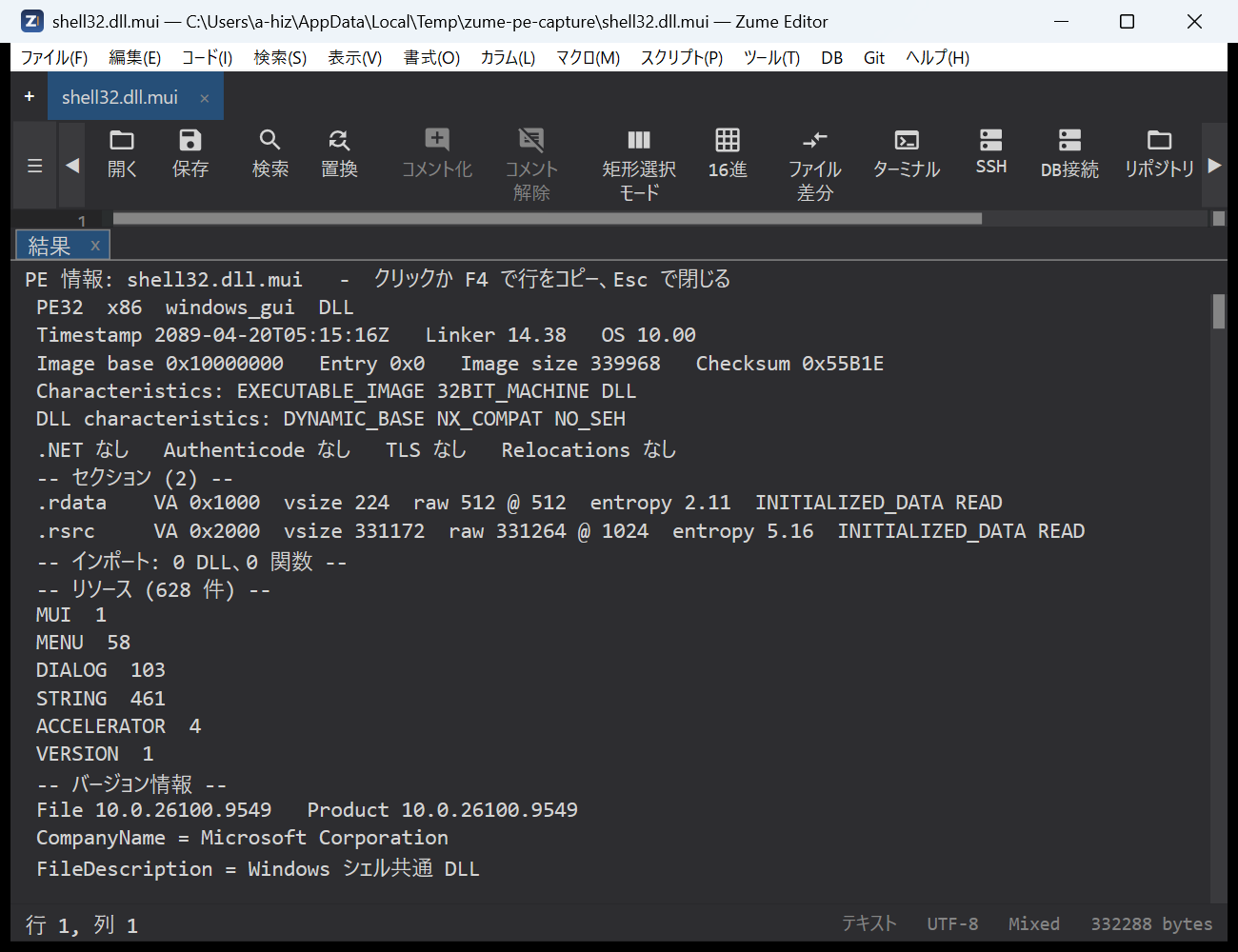
The same readers are the MCP tools pe_info, elf_info and macho_info
(see MCP). They never disassemble, load or run the file.
Analyze only binaries whose licence permits it.
YARA Scan
Code → YARA Scan… scans the active document with a set of YARA rules.
The dialog asks for the path to a YARA rules file (.yar / .yara) — not
the rules themselves. You write the rules in a file first, then point the dialog
at it.
- Create a rules file (see the example below) and save it, e.g.
C:\rules\malware.yaror~/rules/strings.yara. - Open the document you want to scan, then run Code → YARA Scan… (it is also in the command palette).
- Enter the full path to the rules file and press Enter.
- Matches are listed in the results panel as
rule $string line N @ offset. Click a row (or press F4) to jump to that line.
The command works on a normal text / code tab (not on large-file, hex or Git tabs).
Example rules file
rule suspicious_strings
{
    strings:
        $a  = "cmd.exe /c" nocase
        $b  = "powershell" nocase wide
        $mz = { 4D 5A ?? 00 }              // PE header (?? is a wildcard byte)
        $url = /https?:\/\/[a-z0-9.\-]+/ nocase
    condition:
        $mz and (2 of ($a, $b, $url))
}
What is supported
A practical subset of the YARA language:
- Strings — text (
"..."), hex ({ 4D 5A ?? 00 }, with??byte and?nibble wildcards) and regular expressions (/regex/). - String modifiers —
nocase,wide,ascii,fullword. - Conditions — a string name (
$a),all of them/any of them/N of them,N of ($a*),#a <op> N(match count),$a at N(match at an offset),filesize <op> N,and/or/not, parentheses, and//…/* … */comments.
It is not the full libyara engine: modules (pe, hash, math, …), hex
jumps ([4-6]) and alternation (( A | B )) are not supported, and a rule that
uses them reports a typed error instead of matching.
Inline rules / batch scanning
To paste rules directly, or to scan a whole file or directory at once, use
the yara_scan tool over MCP — it accepts the rules as text
and a file, a directory or inline bytes as the target.
Transform recipes
Code → Apply Convert Recipe… runs a pipeline of transforms over the
selection (or the whole document), left to right. Steps are separated by |
(or spaces / commas); a step argument follows a colon. For example:
from_base64 | xor:cafe | gunzip
The dialog that opens takes the recipe in its single text field; the hint below the field lists every step the engine accepts, grouped as in the table below, so you do not have to remember them. Type the steps, then press Enter (or OK) to apply; Esc cancels.
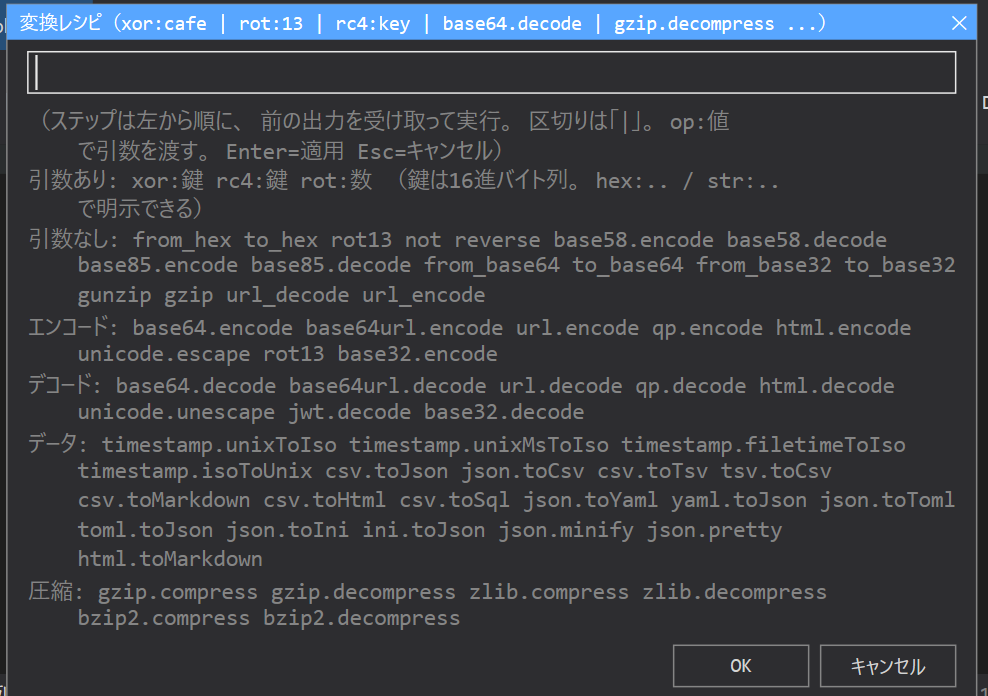
Every step
| Group | Steps |
|---|---|
| With an argument | xor:<key> (XOR every byte with the repeating key), rc4:<key> (RC4 encrypt / decrypt), rot:<n> (Caesar shift by n) |
| No argument | from_hex, to_hex, rot13, not (invert every bit), reverse (reverse the bytes), base58.encode / base58.decode, base85.encode / base85.decode |
| Short names | from_base64 = base64.decode, to_base64 = base64.encode, from_base32 / to_base32, gunzip = gzip.decompress, gzip = gzip.compress, url_decode / url_encode |
| Encode | base64.encode, base64url.encode, url.encode, qp.encode, html.encode, unicode.escape, rot13, base32.encode |
| Decode | base64.decode, base64url.decode, url.decode, qp.decode, html.decode, unicode.unescape, jwt.decode, base32.decode |
| Data | timestamp.unixToIso, timestamp.unixMsToIso, timestamp.filetimeToIso, timestamp.isoToUnix, csv.toJson, json.toCsv, csv.toTsv, tsv.toCsv, csv.toMarkdown, csv.toHtml, csv.toSql, json.toYaml, yaml.toJson, json.toToml, toml.toJson, json.toIni, ini.toJson, json.minify, json.pretty, html.toMarkdown |
| Compress | gzip.compress, gzip.decompress, zlib.compress, zlib.decompress, bzip2.compress, bzip2.decompress |
The Encode / Decode / Data / Compress rows are the converters of
File conversion; any converter id works as a step. A key argument
(xor: / rc4:) is read as hex bytes when it looks like hex (cafe,
deadbeef) and as text otherwise; write hex:cafe or str:cafe to say which
explicitly.
Examples
Select the encoded text (or run it on the whole document) and apply:
| Recipe | What it does |
|---|---|
from_base64 |
Decode a Base64 blob |
from_base64 \| gunzip |
Decode Base64, then gzip-decompress the result |
from_hex \| xor:5a |
Hex-decode, then XOR every byte with 0x5A |
from_hex \| xor:hex:deadbeef |
Hex-decode, then XOR with the repeating key DE AD BE EF |
from_base64 \| rc4:str:s3cret |
Base64-decode, then RC4-decrypt with the key s3cret |
rot13 |
ROT13; rot:3 is a Caesar shift of 3 |
base58.decode |
Decode a Base58 string (e.g. a wallet address / key) |
jwt.decode |
Expand a JWT into its decoded header / payload JSON |
from_base64 \| xor:cafe \| from_base64 |
Peel a doubly-encoded, XOR-wrapped payload |
The result replaces the selection (or the document) as one undo step, so
Ctrl+Z reverts the whole recipe. If a step fails (e.g. input that is not valid
Base64), the editor shows which step failed and leaves the text unchanged.
Entropy
In the Hex / Binary editor, the entropy map and the entropy overview strip show the Shannon entropy of the file per region (0–8 bits/byte), so packed or encrypted areas stand out.
Scan for Secrets
Code → Scan for Secrets lists likely secrets (API keys, tokens, private keys, credentials) in the document, each with its line; a row jumps to it. Edit → Redact Selection masks the selected text.