Getting Started
A quick tour so you can find your way around.
The window
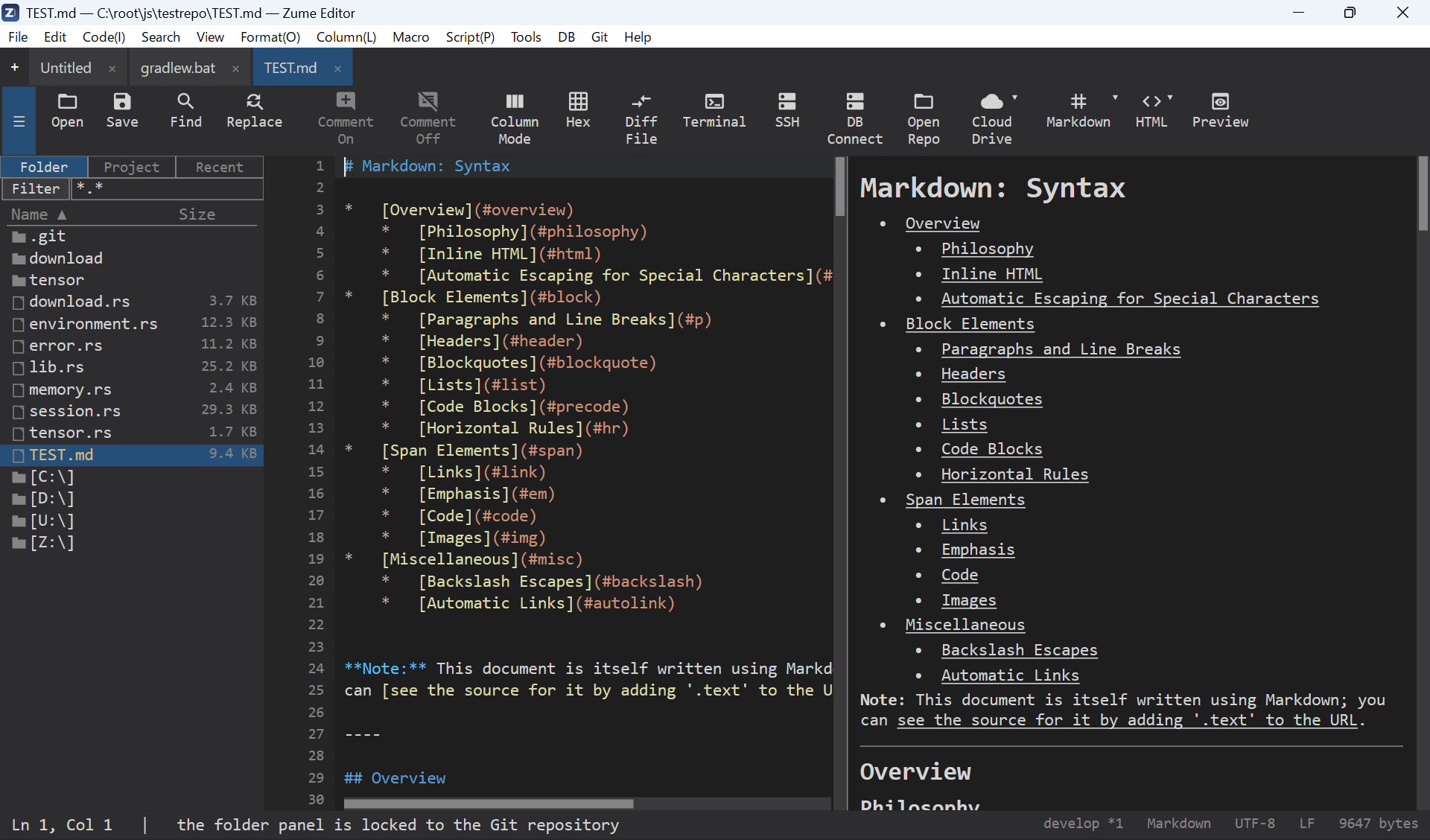
- Tabs - each open file is a tab. Drag to reorder; Ctrl+T opens a new tab, Ctrl+W closes one.
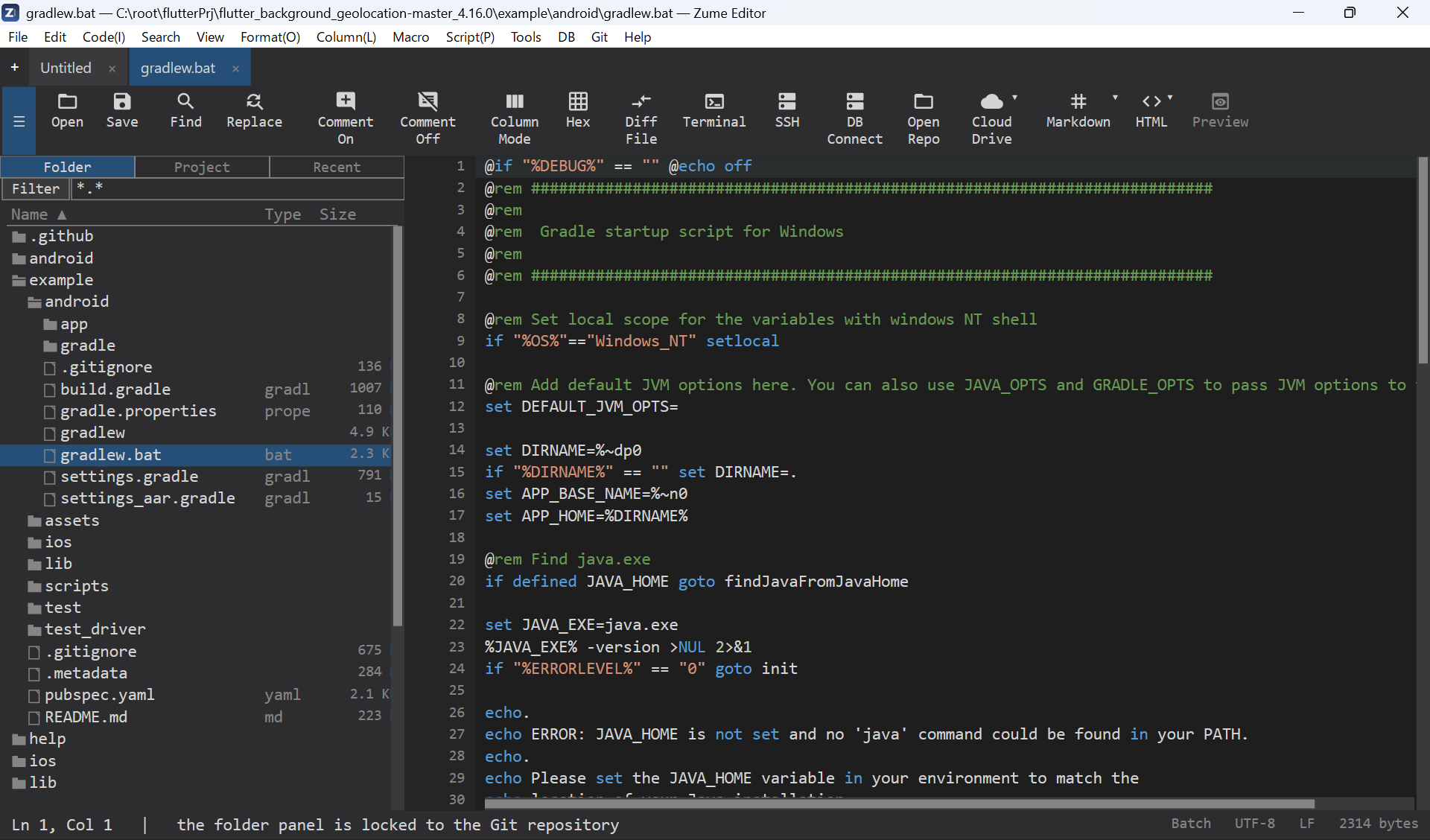
- File panel (sidebar) - toggle with Ctrl+B. Browse folders, Recent and Projects; it has an Explorer-style tree with detail columns.
- Editor area - split a tab into two panes (vertical/horizontal), or show two different files side by side.
- Bottom / side panels - search results, the Terminal, compare output and more. Panels are dockable.
- Status bar - line/column, language, encoding, line ending and more. Click the encoding or language to change it.
First steps
- Open a file or folder - Ctrl+O, or drag files onto the window.
- Edit - type as usual. Undo/redo is Ctrl+Z / Ctrl+Y.
- Find - Ctrl+F for the find bar; Ctrl+R for the full Find & Replace dialog. See Search & Replace.
- Save - Ctrl+S.
The command palette
Press Ctrl+Shift+P to search and run any command by name - the fastest way to discover features. Each command shows its keyboard shortcut.
Markdown & HTML preview
Open a Markdown or HTML file and turn on View → Toggle Markdown / HTML Preview to see a live preview beside the editor. The preview updates as you type.