CloudDrive
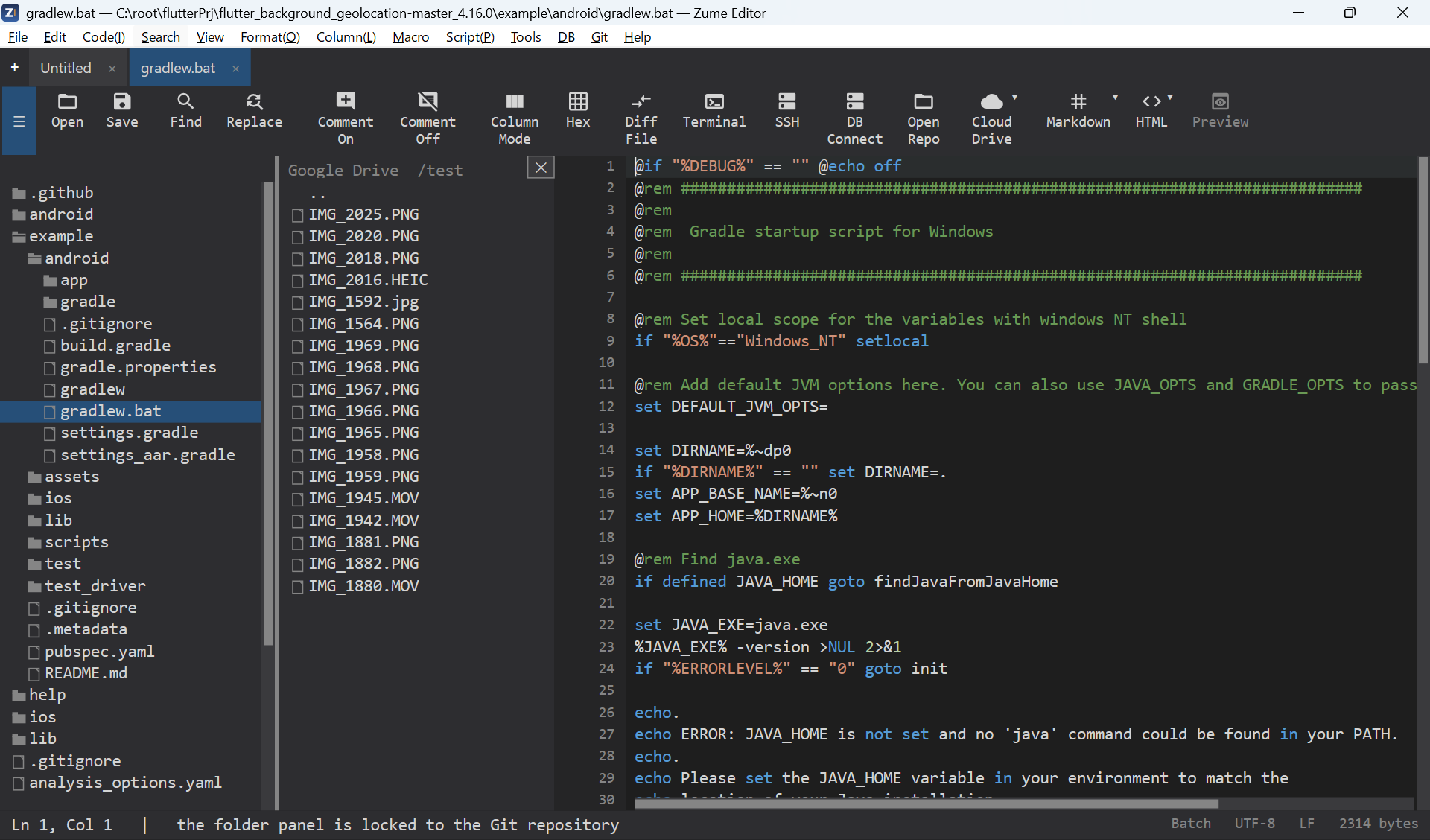
Open and edit files stored in your cloud storage accounts:
- Dropbox
- Google Drive
- OneDrive
- Box
Connect an account with Remote → CloudDrive and sign in through the provider's own secure sign-in (OAuth) - Zume Editor never sees your cloud password. Browse the drive in the sidebar, open a file in a tab, and save to upload it back.
Note
CloudDrive is for consumer cloud storage. For your own servers, use Remote Files (SFTP / FTP / FTPS).
You provide your own OAuth app credentials
Zume Editor does not ship a built-in cloud client. The first time you connect a
provider you enter your own OAuth app's credentials (a Client ID, and for
most providers a Client Secret). You create that app once, in the provider's
developer console - it is free, takes a few minutes, and the credentials are
stored in your OS credential store (never in a file), shared with zume-cli.
The redirect URI
Google Drive, OneDrive and Box finish the sign-in by redirecting to a small local server Zume Editor runs. Register this exact redirect URI in your app:
http://localhost:53682/callback
A mismatch here is the most common setup error (redirect_uri_mismatch). Dropbox
uses a paste-the-code flow instead and needs no redirect URI.
Connecting the first time
- Remote → CloudDrive → Connect to <provider>.
- Enter the Client ID, then the Client Secret (Dropbox asks only for the app key; OneDrive only for the Client ID).
- Your browser opens the provider's consent page - approve access. (Dropbox shows a code to paste back into the editor instead.)
- Zume Editor catches the redirect on
localhost:53682(within ~3 minutes) and saves the token. The drive appears in the sidebar.
Next time, the saved token is reused - no browser step - until you
Remote → CloudDrive → Disconnect (or logout in the CLI).
Where to get the Client ID / Client Secret
Google Drive
- Open the Google Cloud Console and create or select a project.
- APIs & Services → Library → enable Google Drive API.
- APIs & Services → OAuth consent screen → set it up (User type External; while the app is in Testing, add your Google account under Test users).
- APIs & Services → Credentials → Create credentials → OAuth client ID → Application type Web application.
- Under Authorized redirect URIs add
http://localhost:53682/callback. - Create it, then copy the Client ID and Client secret.
Dropbox
- Open the Dropbox App Console → Create app → Scoped access, and choose Full Dropbox or App folder.
- On the app's Permissions tab enable the file scopes (read and write).
- Copy the App key from the Settings tab. (Dropbox uses the paste-the-code flow, so no redirect URI and no secret are needed.)
OneDrive
- Open the Azure Portal → App registrations → New registration.
- Add a redirect URI
http://localhost:53682/callback(as a Mobile & desktop / public client - no secret is used). - Grant the delegated Files.ReadWrite permission.
- Copy the Application (client) ID.
Box
- Open the Box Developer Console → Create New App → Custom App → User Authentication (OAuth 2.0).
- Set the redirect URI to
http://localhost:53682/callback. - Copy the Client ID and Client Secret from the app's Configuration.
From the command line
zume-cli cloud googledrive login <client_id> <client_secret>
zume-cli cloud dropbox     login <app_key>
zume-cli cloud onedrive    login <client_id>
zume-cli cloud box         login <client_id> <client_secret>

zume-cli cloud <provider> ls [path]
zume-cli cloud <provider> get <remote> <local>
zume-cli cloud <provider> put <local> <remote>
zume-cli cloud <provider> logout
The CLI uses the same loopback sign-in and shares the saved token with the editor. See the Command Line page for details.