File conversion & archives
Zume Editor converts text and data between many formats, exports Markdown / HTML
to PDF, and creates and extracts zip / tar / 7z archives — from the editor and
from the zume-cli command line.
Convert a file
Convert: Convert File… (in the command palette / Tools) lists every converter. Pick one and choose where to save; the result is written to the file you pick. The active document is the input.
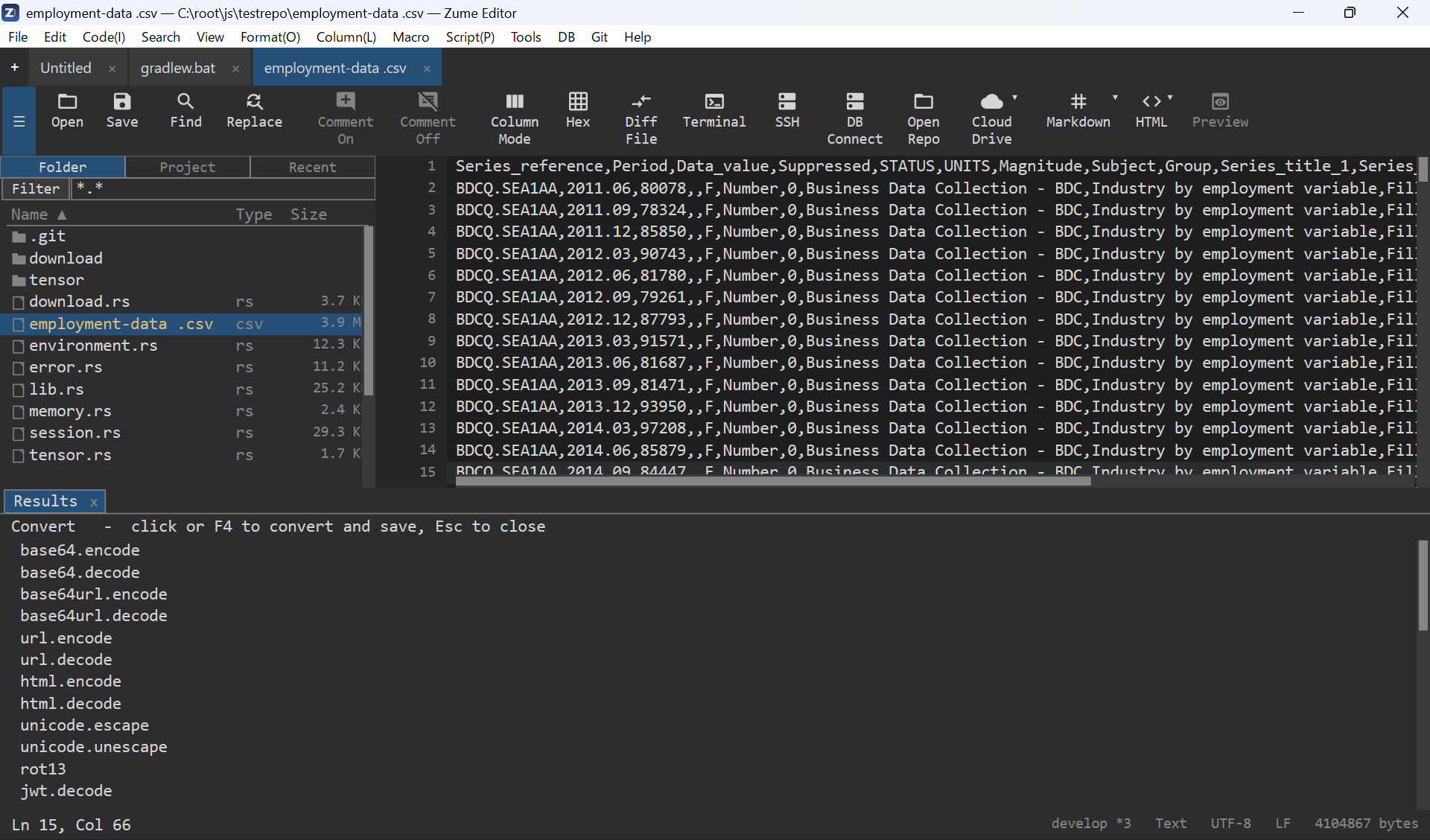
Available converters:
| Group | Converters |
|---|---|
| Text encodings | Base64 / Base64URL encode·decode, URL encode·decode, HTML-entity encode·decode, Unicode escape·unescape, ROT13, Base32 encode·decode |
| Tokens | JWT decode |
| Data | CSV ↔ JSON, CSV ↔ TSV, CSV → Markdown table, CSV → HTML, CSV → SQL, JSON ↔ YAML, JSON ↔ TOML, JSON ↔ INI, JSON minify / pretty, HTML → Markdown |
| Compression (single stream) | gzip, zlib and bzip2 — compress / decompress |
Note
gzip / zlib / bzip2 here compress one file into one stream. For multi-file
.tar.gz / .tar.bz2 archives, see Archives below.
Tip
To chain several of these over the selection in place (for example
base64.decode | gzip.decompress | json.pretty), use Code → Apply Convert
Recipe… — see Transform recipes, which
lists every step the recipe accepts.
Export to PDF
A Markdown or HTML document can be saved as PDF:
- File → Export to PDF…, or the to PDF entry in the Convert File picker, or the CLI (below).
- A save dialog asks where to write the
.pdf. - Rendering uses the platform's own engine (Windows: the Edge WebView2 runtime; macOS: Core Graphics; Linux: Pango / Cairo), so Japanese and other scripts render with the system fonts.
Archives
Create and extract archives from the folder panel (right-click a file or folder):
- Extract Here — on an archive file, extracts into a sibling folder named after the archive.
- Compress… — on a file / folder (or a multi-selection), asks where to save; the extension you choose picks the format.
| Format | Extract | Create |
|---|---|---|
.zip |
✅ | ✅ |
.tar, .tar.gz / .tgz, .tar.bz2 / .tbz2, .tar.xz / .txz |
✅ | ✅ |
.7z |
✅ | ✅ |
.rar / RAR5 |
✅ | — |
.xz |
✅ | — |
Note
RAR is extract-only (the format is proprietary). Encrypted RAR / 7z is not
supported. A .7z entry whose name is non-ASCII may not round-trip through
the 7z container (the file contents are unaffected).
From the command line
# Conversion
zume-cli convert                      # list all converters
zume-cli convert <id> <in> [out]      # convert a file (stdout if no out)
zume-cli convert md.toPdf   in.md  out.pdf
zume-cli convert html.toPdf in.html out.pdf

# Archives
zume-cli archive list    <archive>
zume-cli archive extract <archive> [dest-dir]     # default: .
zume-cli archive create  <archive> <path>...      # format by extension
create writes .zip, .tar, .tar.gz / .tgz, .tar.bz2 / .tbz2,
.tar.xz / .txz and .7z; extract also reads .rar and .xz. See the
Command Line page for the full CLI reference.